These instructions are for those of you who wish to tether your iPhone to your Mac. This only works on iPhone OS 3.0 and 3.01 (NOT 3.1, yet). Jailbreak or extra fees to AT&T are NOT necessary to make this work!
How to enable tethering:
- Run Safari mobile web browser on the iPhone.
- Visit the following Mobileconfigs website: http://help.benm.at/tethering.php
- Select your country.
- Select your mobile service provider.
- Tap Install to install new profile.
- Select Install Now to download and install new profile.
- On iPhone interface, go to Settings -> General -> Network -> Internet Tethering.
- Set Internet Tethering to On.
- If prompted that Bluetooth is off, select Turn on Bluetooth or USB Only according to your preference.
- Internet tethering is now enabled, connect your iPhone to your Mac via USB or Bluetooth to start connecting to Internet through the iPhone as tethered Internet gateway modem. While using this feature the top of your iPhone screen will glow blue to notify you tethering is active.
How to enable MMS:
- Visit the following Mobileconfigs website: http://help.benm.at/mms.php
- Its best to visit on your computers browser, so you can reference the settings while entering them into your iPhone.
- Select your country.
- On your iPhone go to Settings -> General -> Network -> Cellular Data Network
- Scroll down to the MMS section.
- Enter the data from the Mobileconfigs website in the appropriate fields.
- Restart your phone.
To verify MMS is active, go to the Messages application, create a new message. Next to text entry box, you should have a little camera button, where you can select a picture to attach to your message. If not, something went wrong with your setup.
My visual voicemail stopped working after I enabled tethering. Here are the instructions to fix visual voicemail:
- Go to Settings -> General -> Reset -> Reset Network Settings.
- NOTE: Do NOT use the Settings -> General -> Network -> Cellular Data Network -> Reset Settings. If you do this your tethering will stop working and have to be setup all over again.
- After the short reset, iPhone should be able to be used for MMS, Voicemail and Internet tethering.

If you are a Facebook Fan Page administrator, here is a very easy way to sync your updates to Twitter. 
- Sign into your Facebook account
- Go to http://www.facebook.com/twitter
- Click on “Link a Page to Twitter”
- Select the Facebook Fan Page you want to link to your Twitter account
- You will be redirected to Twitter to authorize Facebook access (you may need to sign into Twitter)
- Next you will configure the settings for what information gets sync’ed to Twitter
- Your done!
Source: http://www.theinternetjourney.com/social-networks/twitter-social-networks/facebook-twitter-fan-page/
With all the hype about MMS finally coming to the iPhone, I finally have to rant…
I’m sure most of you are familiar with SMS, a technology that allows you to send 160 characters at a time, that was first introduced in 1992. MMS was the next evolutionary step, that allowed people to send not only text, but also pictures and/or audio, and is generally limited to 100-300 KB’s. Email, on the other hand, allows you to send messages FAR GREATER in size and content. Typically limited to 20-30 MB’s!
So why is it that people are so into TXT’ing and sending MMS’s? Can you all see you are playing into the pocket books of the carriers? They charge on both ends of the messages, sending and receiving. SMS is typically 20 cents and MMS is typically 50 cents. That means carriers get 40 cents per SMS and $1 for each MMS! Outrageous! Yet everyone can’t wait to be able to send them.
Whats even worse, are “smart phone” users who have unlimited data and email access, who STILL send SMS and MMS message!
I don’t think most people realize they CAN do email on their phone without a data plan. Just about every carrier has what is known as a SMS or MMS to email gateway. This means you can send a SMS to an email address, or receive email to your SMS capable device. Here is a list of addresses to do this on the major carriers in the USA (number = your 10 digit mobile number):
AT&T:
SMS: number@txt.att.net
MMS: number@mms.att.net
Verizon:
SMS: number@vtext.com
MMS: number@vzwpix.com
T-Mobile:
SMS: number@tmomail.net
Sprint PCS:
SMS: number@messaging.sprintpcs.com
MMS: number@pm.sprint.com
Sprint Nextel:
SMS: number@page.nextel.com
MMS: number@messaging.nextel.com
A comprehensive list can be found here.
The transition to Apples newest operating system, Snow Leopard has been mostly good, but there has been a few bumps along the way.
My first problem is that the contextual menus sometimes disappear without clicking. At first I thought it was a botched upgrade, so I did a clean install with a newly formatted hard drive, but the problem was still there. I posted on the apple forums, and found that others were having the same or similar problems. So far there is no solution.
My second problem is with my NAS (Network Attached Storage) device, a ReadyNAS. It won’t let me copy some files to it, even though I have the correct permissions to do so. A quick google search showed on their forum that others were having similar problems.
The screen sharing hack that once works great in Leopard no longer works with Snow Leopard.
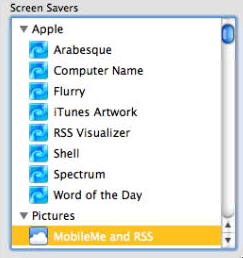
Finally, the RSS screensaver that I LOVED is missing in Snow Leopard. Here is a picture of it in Leopard, but if you go to screensavers in Snow Leopard, its just not there. It was great because I had a subscription to my online photo gallery on all my machines. Whenever the screensaver would fire up, I would see all of our latest pictures around the house. I can’t figure out why Apple would remove such functionality.
With all of these problems, I’m still quite happy with the upgrade.
Here’s an easier way to share the screens of other Macs on your network. The screen sharing feature is just an application. It resides in /System/Library/CoreServices/Screen Sharing.app. You can drag that to your dock for easy access.
If you launch it now, you will get a box asking you for the IP address of the machine you want to connect to. But if you want to simplify things, you can use Bonjour to show you a list of all machines on your local network. You will need to launch terminal and enter:
defaults write com.apple.ScreenSharing ShowBonjourBrowser_Debug 1
When you launch Screen Sharing.app you will be presented with a graphical list of computers available on your local network.
NOTE: This functionality has been removed/broken in Snow Leopard!
Source: http://www.macworld.com/article/131094/2007/12/screensharepower.html
In Snow Leopard, Apple downgraded the installation of Flash to an earlier version (version 10.0.23.1), which is known NOT to be secure and is NOT patched against various security vulnerabilities.
You should update to the latest version immediately: http://get.adobe.com/flashplayer/
This is a simple update:
- Download the latest flash version
- Close your browsers
- Run flash installer
- Your are done!