OS
The transition to Apples newest operating system, Snow Leopard has been mostly good, but there has been a few bumps along the way.
My first problem is that the contextual menus sometimes disappear without clicking. At first I thought it was a botched upgrade, so I did a clean install with a newly formatted hard drive, but the problem was still there. I posted on the apple forums, and found that others were having the same or similar problems. So far there is no solution.
My second problem is with my NAS (Network Attached Storage) device, a ReadyNAS. It won’t let me copy some files to it, even though I have the correct permissions to do so. A quick google search showed on their forum that others were having similar problems.
The screen sharing hack that once works great in Leopard no longer works with Snow Leopard.
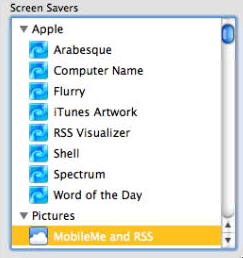
Finally, the RSS screensaver that I LOVED is missing in Snow Leopard. Here is a picture of it in Leopard, but if you go to screensavers in Snow Leopard, its just not there. It was great because I had a subscription to my online photo gallery on all my machines. Whenever the screensaver would fire up, I would see all of our latest pictures around the house. I can’t figure out why Apple would remove such functionality.
With all of these problems, I’m still quite happy with the upgrade.
Here’s an easier way to share the screens of other Macs on your network. The screen sharing feature is just an application. It resides in /System/Library/CoreServices/Screen Sharing.app. You can drag that to your dock for easy access.
If you launch it now, you will get a box asking you for the IP address of the machine you want to connect to. But if you want to simplify things, you can use Bonjour to show you a list of all machines on your local network. You will need to launch terminal and enter:
defaults write com.apple.ScreenSharing ShowBonjourBrowser_Debug 1
When you launch Screen Sharing.app you will be presented with a graphical list of computers available on your local network.
NOTE: This functionality has been removed/broken in Snow Leopard!
Source: http://www.macworld.com/article/131094/2007/12/screensharepower.html
In Snow Leopard, Apple downgraded the installation of Flash to an earlier version (version 10.0.23.1), which is known NOT to be secure and is NOT patched against various security vulnerabilities.
You should update to the latest version immediately: http://get.adobe.com/flashplayer/
This is a simple update:
- Download the latest flash version
- Close your browsers
- Run flash installer
- Your are done!
This list is NOT comprehensive or complete. Its just the changes I have observed or find interesting.
- Change search locations. Change the default behavior of Spotlight to have it search the currently selected folder or your most recent search location. Go to Finder -> Preferences -> Advanced -> change “When performing a search:” to “Search the current folder”.
- Spell checker in TextEdit. Can be controlled in TextEdit preferences.
- Airport menu now shows signal strength of available wireless networks.
- Minimize apps onto their doc icon, instead of the right side of the doc. Go to Apple Menu -> System Preferences -> Dock -> select “Minimize windows into application icon”.
- Activate Expose from the dock: Click and hold an application icon in the Dock and all the windows for that application will unshuffle so you can quickly change to another one.
- Expose shortcuts: With all windows visible in Expose, you can press Command-1 to arrange the windows by name or Command-2 to arrange them by application. Pressing the Tab key will cycle through all the running applications. Press the spacebar while pointing at a window to expand it.
- Expose windows are now highlighted with a blue outline when mouse over.
- More reliable disk eject.
- Restore deleted items to original folders.
- Scroll though stacks and navigate folders in stacks.
- Faster shutdown and wake-up.
- HFS+ read support in Boot Camp.
- Screen recording functionality built into Quicktime Player. Seems to only support the main screen, not external monitors.
- Date in menu bar.d
- Screen saver shuffle.
- Multi-Touch gestures in older Mac models.
- Preview intelligent text selection.
- Location awareness: Snow Leopard can determine your time zone from information provided by your Wi-Fi hotspot – in your Date & Time preferences, choose Time Zone, and tick Set Time Zone Automatically
- Descriptive Screenshot filenames: Instead of “Picture 1,” you now get “Screen shot 2009-09-04 at 11.26.49 AM” (It seems they didn’t follow this same goodness with their screencast recordings. Always hope for their next patch?)
Here is what broke on my upgrade:
- Little Snitch
- iStat Menus
Screen Capture Shortcuts
- Command-Shift-3: screen capture of your entire screen, save to your desktop
- Command-Shift-4: crosshair cursor so you can choose which area of the screen you want to capture, save to your desktop
- Adding Control to either of these commands copies the capture into your Clipboard memory, so you can paste it where you want.
via Apple – Pro – Tips – The Secret Screen Capture Shortcut.

I wanted to create a secure drop box to my website and decided to try sshfs.
I had MacFuse already installed from using NTFS-3G.
- Download and install sshfs.
- Double click the gz file you downloaded to extract and rename it to sshfs.
- Move the sshfs application to /usr/local/bin/
- Go to Finder, Go, Go to folder…
- type in: /usr/local/bin/
- Drag the sshfs app to the folder
- Finder will ask you to authenticate, so type in your password
- Now you need to change the permissions on the sshfs file so it is executable.
- Launch Terminal
- cd /usr/local/bin/
- ls -al to see files and permissions
- To change the permissions: chmod 755 sshfs
- To change the owner and group: sudo chown root:wheel sshfs
Now you can use sshfs to mount your remote shares. I created a script to initiate the mount, but obviously this can be used at the command line. For usage options type: sshfs -h
Here is my script:
umount /Volumes/Domain.com
rmdir /Volumes/Domain.com
mkdir /Volumes/Domain.com
sshfs username@domain.com:path/uploads/ /Volumes/Domain.com/ -o auto_cache -o local -o volname=Domain.com
Here is what happens:
- unmount anything that may exist in /Volume/Domain.com
- delete any Domain.com folder that exists in /Volumes
- create /Volumes/Domain.com to mount the remote file system into
- finally mount the remote file system
Caveat: sshfs does NOT do file locking, therefor it would NOT be good to use in a multi-user environment. You can, but you will more than likely run into problems.
Problem: Hard drives can fill up, and when they do, no good can come of it. Wouldn’t you like to be notified before impending disaster so you can correct the situation?
Solution: Here is a simple script that I put in /etc/cron.hourly (would probably be better in cron.daily, but I’m overly paranoid)
#!/bin/sh
# set -x
# Shell script to monitor or watch the disk space
# It will send an email to $ADMIN, if the (free available) percentage of space is >= 90%.
# ————————————————————————-
# Set admin email so that you can get email.
ADMIN=”administrator@yourdomain.com”
# set alert level 90% is default
ALERT=80
# Exclude list of unwanted monitoring, if several partions then use “|” to separate the partitions.
# An example: EXCLUDE_LIST=”/dev/hdd1|/dev/hdc5″
EXCLUDE_LIST=”/boot”
#
#::::::::::::::::::::::::::::::::::::::::::::::::::::::::::::::::::::::::::::::::::::::::::::::::::::::::
#
function main_prog() {
while read output;
do
#echo $output
usep=$(echo $output | awk ‘{ print $1}’ | cut -d’%’ -f1)
partition=$(echo $output | awk ‘{print $2}’)
if [ $usep -ge $ALERT ] ; then
echo “Running out of space \”$partition ($usep%)\” on server $(hostname), $(date)” | \
mail -s “Alert: Almost out of disk space $usep%” $ADMIN
fi
done
}
if [ "$EXCLUDE_LIST" != "" ] ; then
df -H | grep -vE “^Filesystem|tmpfs|cdrom|${EXCLUDE_LIST}” | awk ‘{print $5 ” ” $6}’ | main_prog
else
df -H | grep -vE “^Filesystem|tmpfs|cdrom” | awk ‘{print $5 ” ” $6}’ | main_prog
fi
Download: diskalert.sh
Credit: http://www.cyberciti.biz/tips/shell-script-to-watch-the-disk-space.html
Requirements: Mac OS X 10.4/10.5, running on an Intel or PowerPC computer
Process: While the process requires two separate installs, its VERY simple.
Install:
It now JUST WORKS. However if you NEED to see something, you can go to the NTFS-3G system preference.
The latest Conficker virus variant will begin checking for a payload to download on April 1, 2009. Here are a few steps you can take to make sure your computer is safe against this and other viruses:
- Patch the specific Conficker vulnerability in Windows
- Update your operating system
- Make sure your virus scanner definitions are up to date
- Make sure your virus scanner subscription is paid for and up to date
- Install a free virus scanner
- Scan your installed software for vulnerabilities
Symptoms of infection:
- Account lockout policies being reset automatically.
- Certain Microsoft Windows services such as Automatic Updates, Background Intelligent Transfer Service (BITS), Windows Defender and Error Reporting Services disabled.
- Domain controllers responding slowly to client requests.
- Congestion on local area networks.
- Web sites related to antivirus software becoming inaccessible.
Quick tests to see if you are infected:
A few days ago I was touting one big benefit of OS X was that you could be on multiple IP subnets simultaneously. Today I’m writing to let you know that this still works, but beware of the dumb mac users who try this…
Today I was trying to VPN into one of my clients networks. The PPTP VPN connection would connect, but no traffic was sent. I glanced in the Console in OS X and found this:
3/19/09 3/19/09, 9:58:07 PM pppd[1555] route_interface: write routing socket failed, File exists
After googling “route_interface: write routing socket failed, File exists” a bit, it dawned on me, that the second Ethernet interface I added the other day, was on the same subnet as my clients remote network. So the PPTP VPN wouldn’t pass any traffic. Once I disabled (or I could have changed IP addresses) the second Ethernet interface, the PPTP VPN started working perfectly again!